








The hex editor for binary, byte, and .bin files
Inspect raw data, edit hexadecimal values, and analyze binary file headers, all without leaving your text editor.
Get started today with a 7-day free trial.
What Is a Hex Editor?
A hex editor is a tool that lets you view and edit the raw bytes inside a file. Instead of showing only readable text, a hex editor displays file data in hexadecimal format, usually alongside an ASCII view.
This is useful when a file cannot be fully understood as normal text. For example, executables, .bin files, DLLs, disk images, firmware files, memory dumps, and corrupted files often contain binary data, control characters, or non-printable values. A standard text editor may hide, misread, or distort this information. A hex editor shows the underlying byte values directly.
In simple terms, hex editing lets you see what a file is actually made of.
What Can You Do With UltraEdit’s Hex Editor?
UltraEdit’s Hex mode helps you inspect, navigate, and modify file data at a low level. It is useful for developers, system administrators, data specialists, digital investigators, and anyone who needs precise control over binary or hexadecimal file content.
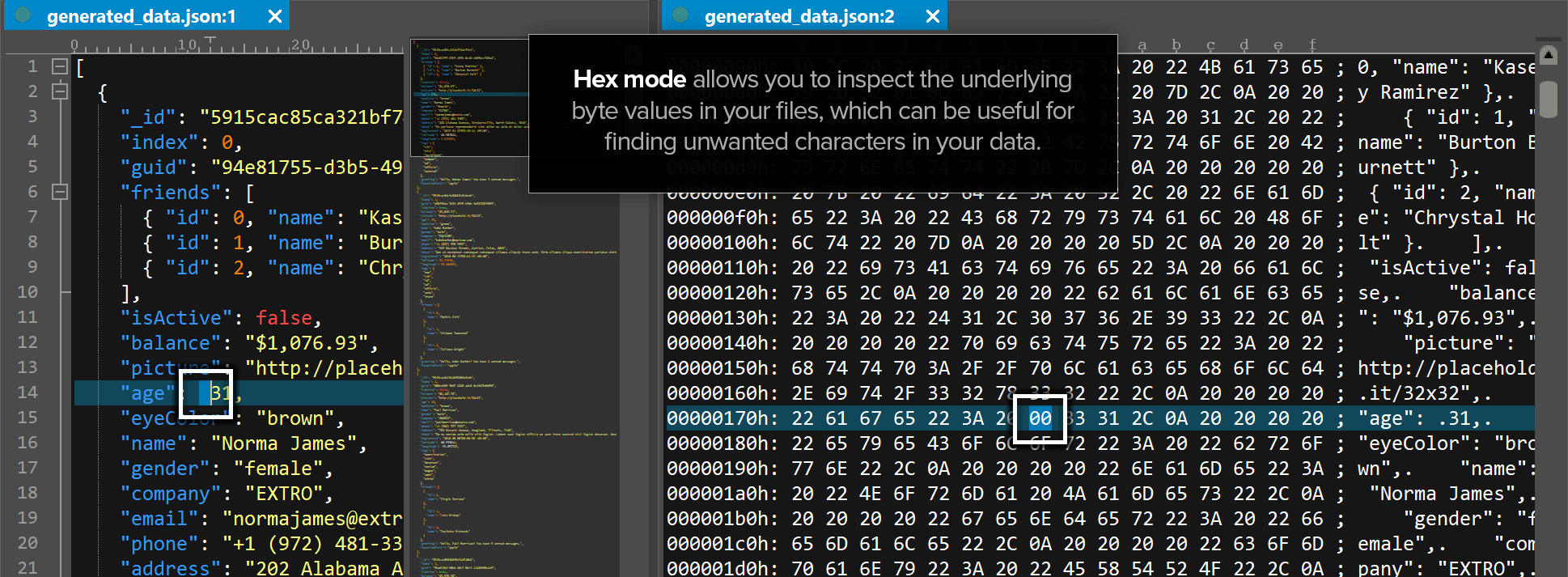
View Binary and ASCII Data Side by Side
UltraEdit’s Hex mode separates file information into clear areas, including the file offset, hexadecimal values, and ASCII representation. This makes it easier to understand where you are in the file, what byte values are present, and how those values appear as readable characters when possible.
This side-by-side view is especially useful when you need to compare raw hexadecimal values with their text representation.

Edit Individual Bytes With Precision
UltraEdit lets you modify file data at the byte level. This is important when you need to edit hexadecimal values directly instead of changing interpreted text.
You can use this level of precision to inspect file signatures, update specific values, examine binary structures, or troubleshoot files that cannot be edited safely in a normal text editor.

Insert, Delete, Find, and Replace Hex Bytes
Hex editing is not only about viewing binary data. UltraEdit also supports practical editing actions such as inserting bytes, deleting bytes, and finding or replacing hex values.
This helps when you need to locate a specific byte pattern, correct a damaged section of a file, or make controlled changes to binary content.
Jump to a Specific Byte Offset or Address
When working with binary files, location matters. UltraEdit allows you to navigate to specific offsets or addresses so you can move directly to the part of the file you need to inspect.
This is helpful when you are following documentation, reviewing file format specifications, debugging binary output, or checking a known location in a file.

Work With Non-Printable and Control Characters
Many technical files contain characters that do not appear clearly in a standard text editor. These may include null bytes, control characters, formatting characters, and other non-printable data.
UltraEdit’s Hex mode helps you view and work with these values directly, making it easier to understand files that contain mixed text and binary content.
Use Hex/EBCDIC Mode for Legacy Data
Some legacy systems use EBCDIC instead of ASCII. This is common in certain IBM mainframe environments and older enterprise systems.
UltraEdit’s Hex/EBCDIC mode helps users inspect and work with this type of data more effectively. This is useful for teams that manage legacy files, mainframe data, data conversions, or older enterprise workflows.
Customize How Hex Values Appear
UltraEdit gives users control over how hex data is displayed. For example, you can customize how many hex characters appear per line to match your workflow or make large sections of data easier to scan.
This makes the hex viewer more comfortable to use when analyzing long files, structured binary formats, or repeated byte patterns.
Open and Edit Large Files Efficiently
Large files are a common challenge for developers, analysts, and IT teams. UltraEdit is designed for large-file workflows, making it useful when you need to open, inspect, and edit files that may be too large for standard editors.
This is valuable for log files, binary exports, database dumps, data files, system files, and other high-volume technical content.

Common Hex Editor Use Cases
A hex editor is useful whenever you need to inspect or edit the actual bytes inside a file. UltraEdit brings this capability into the same editor many teams already use for code, text, data, and large files.
Software Debugging and File Inspection
Developers often use a hex editor to inspect file headers, encodings, separators, byte patterns, and unexpected output. This can help when debugging applications that generate binary files or when checking whether a file follows a specific format.

Binary File Editing
UltraEdit can be used as a binary editor for files that are not meant to be opened as plain text. These may include .bin files, DLLs, executables, firmware files, compiled resources, and other non-text formats.
With a hex editor, you can view the actual byte values in the file instead of relying on an application to interpret the file for you.
Learn how to split a multi-page TIFF into single TIFF files using a hex editor.
Digital Forensics and Incident Investigation
Hex editors are useful in digital forensics and security analysis because they let users inspect raw file data. This can include disk images, memory dumps, file signatures, hidden data, deleted-file remnants, and suspicious binary content.
UltraEdit’s hex editing features help technical teams view and analyze the byte-level data behind files during investigation and incident analysis workflows.

Legacy System and EBCDIC Data Handling
Some enterprise and mainframe environments still use EBCDIC-encoded data instead of modern ASCII or Unicode formats.
For teams working with mainframe exports, legacy files, or enterprise data conversions, UltraEdit’s Hex/EBCDIC mode makes this data easier to inspect and understand.
Large File Analysis
Developers, IT teams, and analysts often need to inspect large logs, binary files, exports, dumps, or data files that basic editors may struggle to open.
UltraEdit is designed for large-file editing and viewing, making it a practical hex editor for workflows that involve large or complex technical files.
Explore more about hex editor use cases.
Why Use a Hex Editor Instead of a Standard Text Editor?
A hex editor works differently. It shows the raw byte values inside the file.
This matters when:
- The file is binary, not plain text.
- The file contains null bytes or control characters.
- The user needs to inspect exact byte values.
- The file has a damaged or unknown structure.
- The user needs to check a file header or signature.
- The file contains encoded, compressed, or non-printable data.
- The user needs byte-level accuracy.
For example, if you open a binary file in a normal text editor, much of the content may appear unreadable or distorted. With a hex editor, you can inspect the same file as hexadecimal values and understand its structure more accurately.
UltraEdit also helps by opening certain binary files in Hex mode when needed, giving users a safer and more practical way to inspect non-text data.
Read more about manual hex editing for data recovery and corrections.
Why Choose UltraEdit as Your Hex Editor?
UltraEdit is more than a standard text editor. It combines text editing, code editing, large-file handling, and hex editing in one professional tool.
Built-In Hex Editing
With UltraEdit, you do not need to rely on a separate hex viewer or standalone binary editor for many common workflows. Hex mode is built into the editor, so you can switch between text editing and hex editing when needed.
Built for Technical Users
UltraEdit is designed for developers, IT professionals, data users, and technical teams. Its hex editing capabilities fit naturally alongside features such as search and replace, file handling, scripting, macros, syntax highlighting, and large-file support.
Useful for Large-File Workflows
Many hex editing tasks involve large files. UltraEdit is known for handling large files efficiently, making it a strong option for users who need to inspect or edit files that are too large for basic editors.
Cross-Platform Support
UltraEdit is available for Windows, macOS, and Linux. This makes it easier for teams to standardize on one editor across different operating systems.
Helpful for Multiple File Types
UltraEdit can support workflows involving text files, code files, binary files, .bin files, data files, logs, and legacy files. This makes it useful for teams that need one editor for many technical tasks.
How to Use a Hex Editor in UltraEdit
- Launch UltraEdit.
- Go to File > Open and select the file you want to open in hex mode.
- When prompted, choose to open the file in Hex Mode or check the Open as binary checkbox (if you have not enabled automatic hex mode). You’ll now see the file’s raw hexadecimal structure in the editor.
UltraEdit displays the file’s offset, hexadecimal values, and ASCII representation, allowing you to view the file at the byte level.
From there, you can inspect byte values, search for hex patterns, edit hexadecimal data, move to a specific offset, or compare how the raw bytes appear in the ASCII view.
This workflow is useful for binary files, corrupted files, files with unknown formatting, and files that contain non-printable characters.
Learn more about identifying corrupted or unknown files with file headers using hex editors.
Try UltraEdit’s Hex Editor
If you need a reliable file hex editor, binary editor, hex viewer, or text editor with hex editing support, UltraEdit gives you the flexibility to handle these tasks in one application.
Frequently Asked Questions
What is a hex editor used for?
Can UltraEdit edit binary files?
How do I open Hex mode in UltraEdit?
- Launch UltraEdit.
- Go to File > Open and select the file you want to open in hex mode.
- When prompted, choose to open the file in Hex Mode or check the Open as binary checkbox (if you have not enabled automatic hex mode). You’ll now see the file’s raw hexadecimal structure in the editor.