








The process of searching through extensive binary files or memory dumps becomes extremely time-consuming when you need to locate specific offsets. The Ctrl+G shortcut in UltraEdit provides a solution to this problem. The feature enables direct navigation to hex addresses, which reduces time consumption and provides exact byte-level precision for debugging and data analysis, as well as manual byte-level editing tasks.
What is Ctrl+G in Hex Mode?
In UltraEdit’s Hex Mode, pressing Ctrl+G brings up the Go To dialog. Here, you can enter a hexadecimal value representing a memory address or file offset. UltraEdit will immediately take you to that exact location in the file’s hex view.
This is especially helpful when you’re working with memory dumps, reverse-engineering compiled code, or fixing corrupted files byte-by-byte.
Use case 1: Analyzing memory dumps
Let’s say you’re debugging a memory dump and you need to check what’s stored at address 0x1A3F0. Instead of scrolling through thousands of bytes manually:
1. Open the dump file in UltraEdit.
2. Switch to Hex Mode (View > Hex Mode).

Opened dump file in UltraEdit Hex Editor
3. Press Ctrl+G and type 1A3F0 (UltraEdit accepts both decimal and hex inputs).
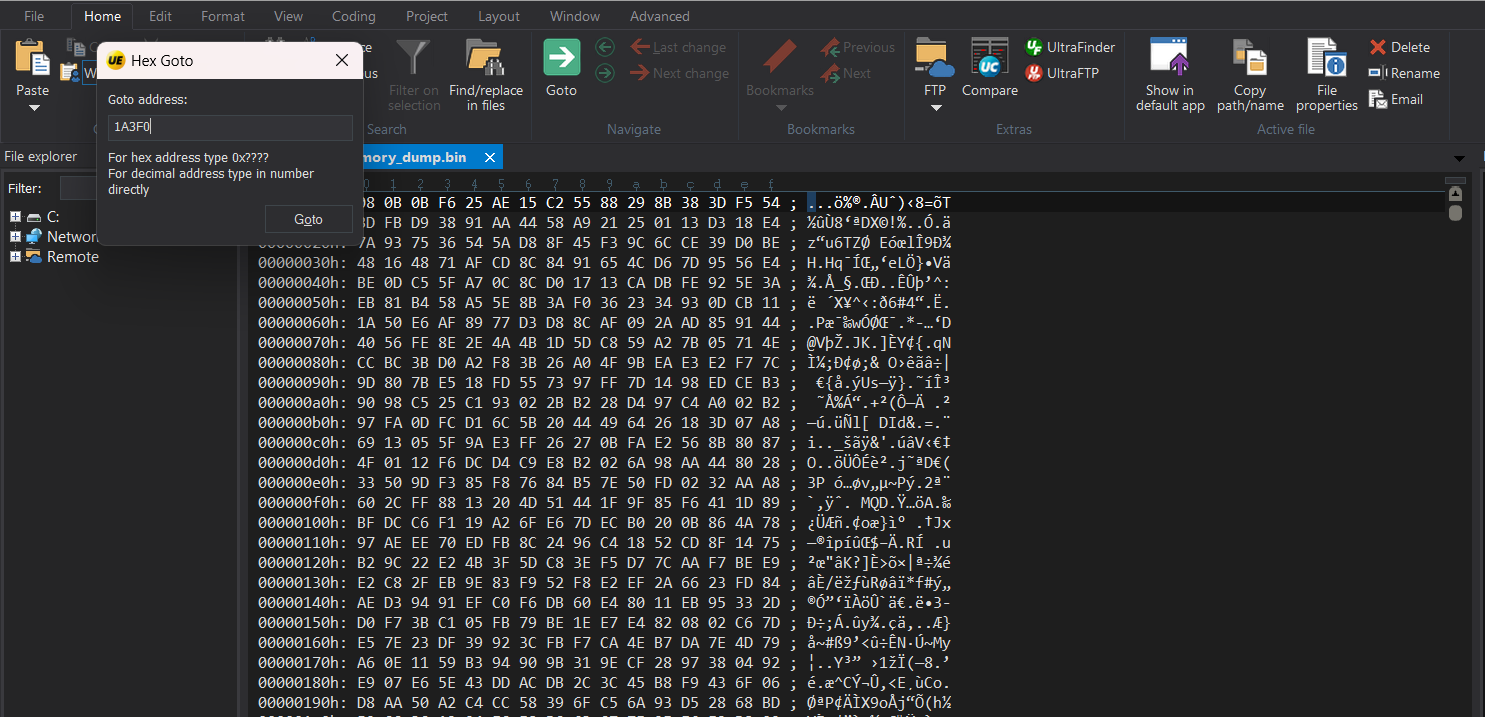
Navigate to a target hex address instantly using Ctrl+G
4. Instantly jump to the memory segment you need.
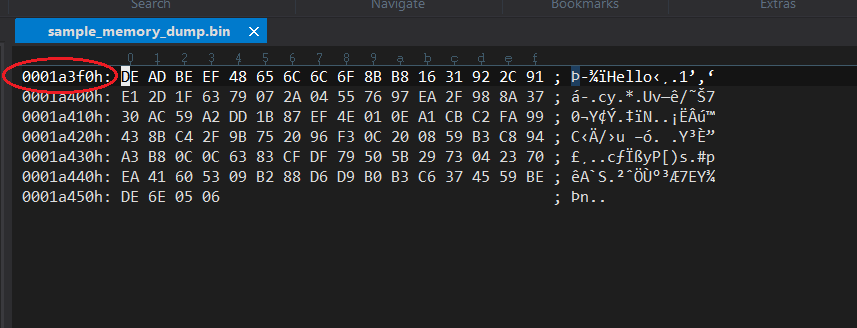
Hex view of the specified memory segment
Now, you can inspect the raw data at that location, compare it with expected values, or document anomalies for your debugging report.
Use case 2: Byte-level editing
Suppose you’re editing a binary file where a certain configuration byte is stored at offset 0x00F4. You’ve been told that changing it from 01 to 00 disables a locked feature. With UltraEdit:
- Press Ctrl+G, go to F4, and you’ll land directly on that byte.
- Edit the hex value directly in the editor.
- Save the file — no need for custom tools or scripts.
This kind of direct editing is invaluable when patching firmware, fixing corrupted headers, or customizing file formats.
Use case 3: Inspecting variable storage
Developers working on embedded systems or C/C++ applications often need to check where variables are stored in memory. If a variable’s address is known — say 0x2B4A — Ctrl+G lets you instantly inspect its value.
This is particularly useful when you’re validating output from debuggers or analyzing compiled binaries.
Why use Ctrl+G in UltraEdit?
UltraEdit is known for handling large files with ease, and its hex navigation tools are no exception. Whether you’re navigating a 2 GB memory dump or a 500 KB binary, Ctrl+G ensures you’re not wasting time hunting for hex values.
And with features like bookmarks, column mode editing, and highlighting, you can enhance your workflow even further after jumping to the desired offset.
Ready to Hex Like a Pro?
Next time you’re deep into binary files, remember that Ctrl+G isn’t just a shortcut — it’s your secret weapon for navigating memory like a pro.
Try it now in UltraEdit. Open your file, hit Ctrl+G, and take full control of your data.



0 Comments