








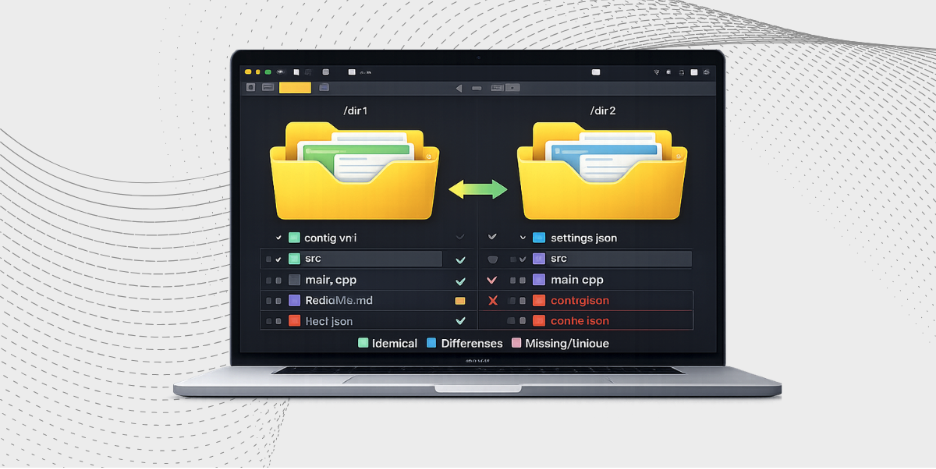
You finish a long coding session and trigger a fresh build. Everything looks fine until deployment fails, and now you suspect missing config files. That’s when teams need to compare two folders—something Mac developers often rely on after failed releases.
Comparing the new folder with the last stable version sounds simple. But Finder shows generic icons instead of meaningful differences. Manual checks waste time when you need to compare two folders; Mac systems generate.
Developers and DevOps teams work with full directories, backups, and CI/CD outputs, so structure matters. This blog shows why directory comparison matters and how UltraCompare works as a Mac folder comparison tool.
Why Comparing Entire Folders Matters
In software development, one missing file can break everything. Folder comparison goes beyond checking simple text changes. It helps verify the full file structure when teams need to compare two folders, such as release folders.
You need to confirm that both folders still match. That matters in many critical development situations. Even small differences can cause serious issues when you compare two folders before deployment.
Common Real-World Scenarios
Software Build Verification: Check which binaries or assets changed between versions 1.0 and 1.1 by comparing the two folders that the teams exported.
- Deployment Auditing: Make sure your local
distfolder matches what was uploaded to the server. - Backup Validation: Confirm a mirrored drive contains every byte of the original source.
- Branch Exports: Compare exported Git branch directories for untracked files when you compare two directories in Mac workflows.
| Scenario | Primary Concern | Impact of Error |
|---|---|---|
| CI/CD Pipeline | Missing artifacts | Failed deployments |
| Dependency Updates | Extra or removed library files | Runtime crashes |
| Site Migration | Discrepancies in media folders | Broken image links |
Why Most Mac Diff Tools Struggle With Folder Comparisons
Have you ever used a standard text editor to compare folders? You know the frustration. Most tools compare two files side by side, not large projects with many subdirectories. That is where a real directory diff Mac workflow matters.
The Limitations of Basic Methods
- File-Focused Logic: Many tools lack recursive scanning, so they cannot compare project directories on Mac properly.
- Terminal Complexity: Commands like diff -r or rsync –dry-run produce hard-to-read output, so many users look for easier alternatives to compare two folders on Mac.
- No Visual Hierarchy: Without a tree view, it is hard to spot missing or changed files in a Mac diff tool for folders.
What a Good Folder Comparison Tool Should Provide
When you move beyond the command line, you should look for specific professional features. A high-quality Mac folder diff tool for Mac needs to handle the heavy lifting for you. You should expect the following capabilities in your workflow:
- Recursive Scanning: Automatically checks every subfolder.
- Clear Change Classification: Show added, deleted, and modified files clearly.
- Filtering and Sorting: Ignore files like. DS_Store or node_modules.
- Visual Side-by-Side Diffs: Open changed files and review line-by-line differences, especially when you compare project folders mac teams share.
How to Compare Two Entire Folders on Mac with UltraCompare
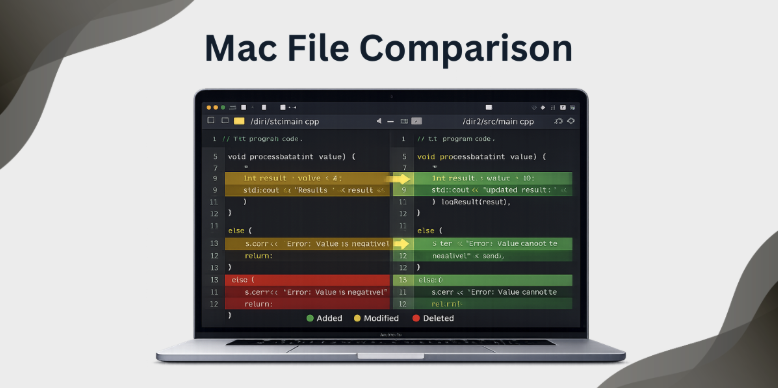
UltraCompare Mac is a professional tool designed to help with these heavy tasks. It manages huge directories that would crash or break down simple applications. These are the steps to follow when comparing two folders that Mac users wish to peruse effectively.
Step 1: Open UltraCompare
Open the application on your Mac. It has a clean Mac-native interface that is suited to high-resolution displays. It is a great daily Mac folder comparison tool.
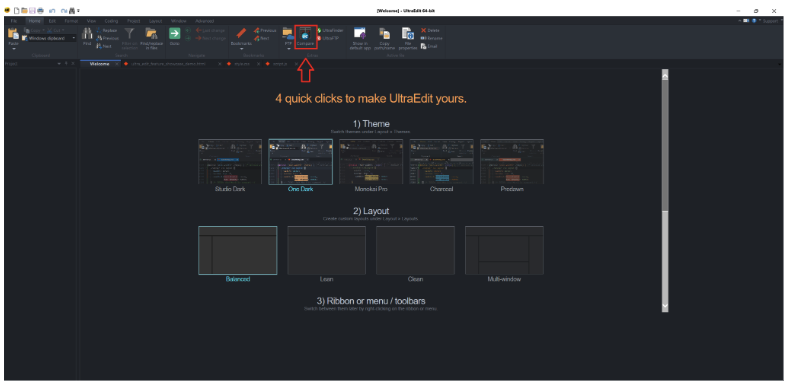
Step 2: Select Folder Compare Mode
Select the Folder Compare icon on the session ribbon. This would change the engine to directory-level logic rather than simple text comparison. Able to compare two folders on Mac that are exported by Mac developers using different build stages.
Step 3: Select Your Directories
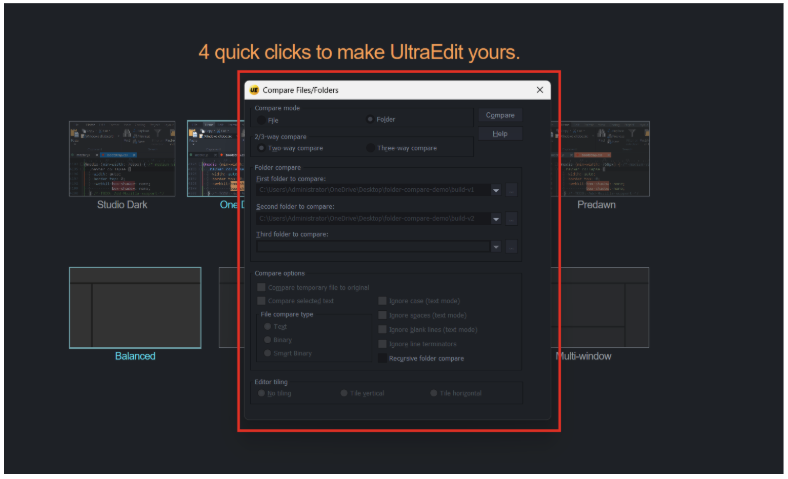
You can drag and drop your folders into the right and left panes. You can also use the file picker to choose your folders.
E.g., load /builds/v1-alpha on the left and /builds/v1-beta on the right. It is a fast means of comparing two directories mac professionals manage on release day.
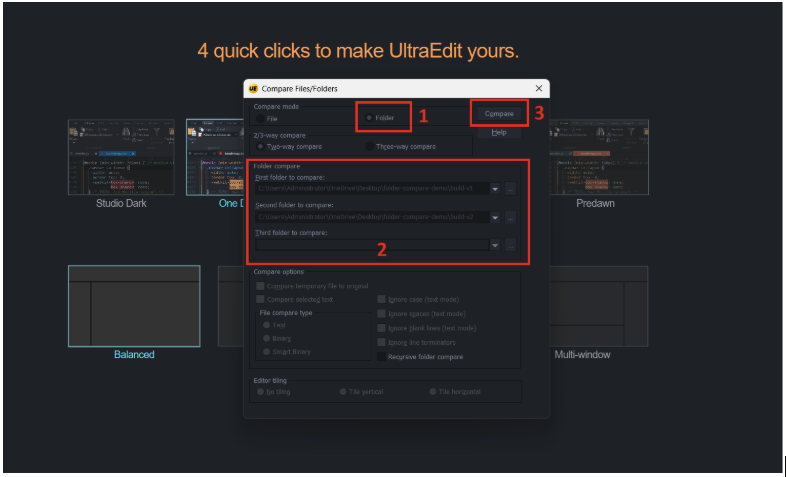
Step 4: Run the Comparison
Hit the Compare button. UltraCompare will execute its threaded engine to scan both directories. It even accepts ZIP or RAR archives when your builds are compressed, making it a good choice for directory diff on Mac.
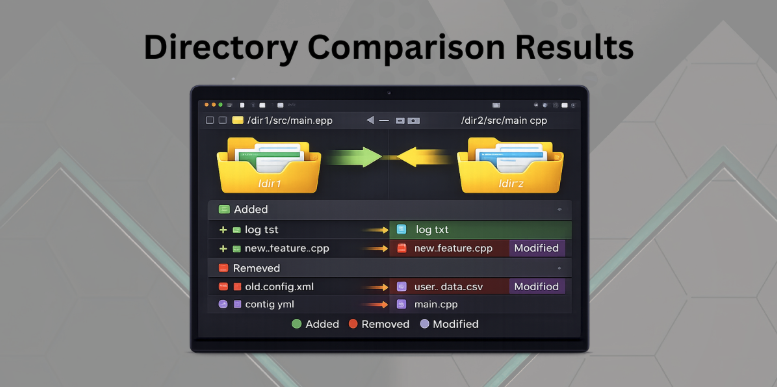
Step 5: Analyze Results
The tool displays a tree view. Look for the color coding:
- Blue/Purple: Modified files.
- Green: New files found only in one folder.
Red: Missing files.
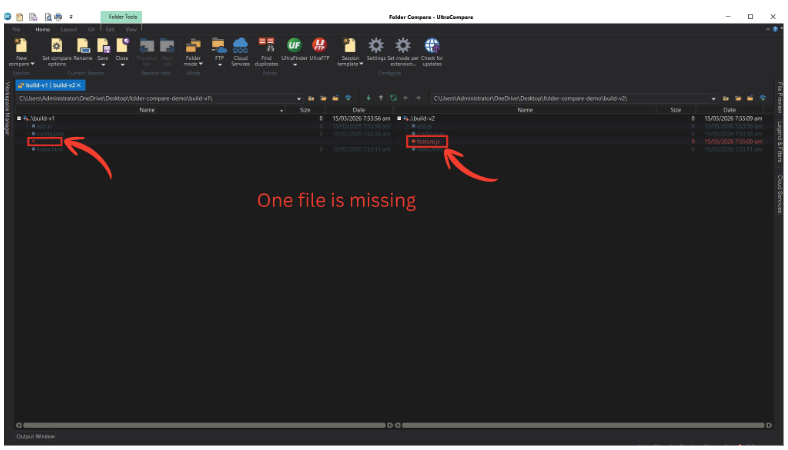
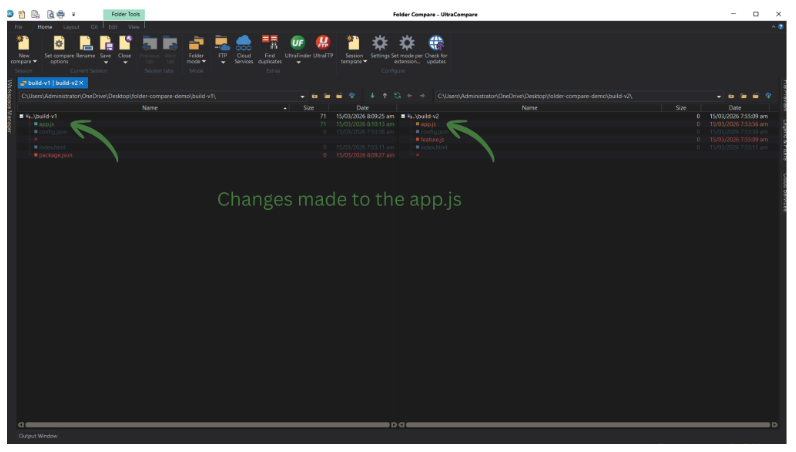
This perspective makes it easier to compare the directories Mac teams have to check quickly.
Step 6: Inspect and Merge
UltraCompare opens a new tab on which the text diff is displayed. One can then combine changes from one side to the other with just a single click. It is one of the reasons many teams use it to compare two Mac folders before delivery.
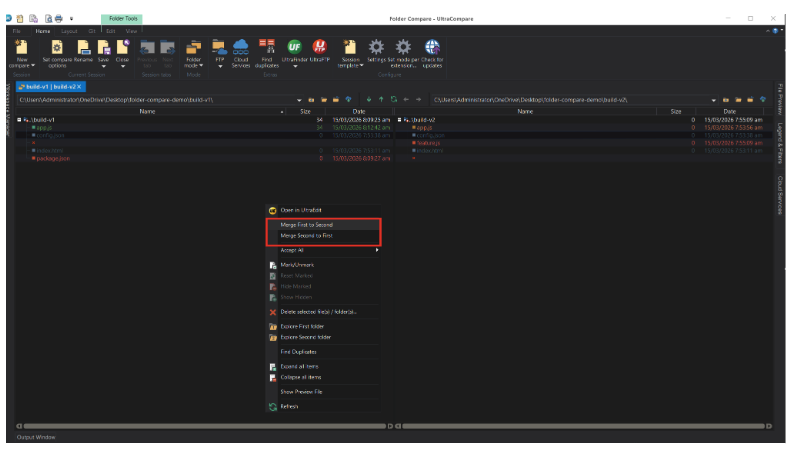
Bash
# While UltraCompare provides a GUI, you can also launch it via terminal:
ucmp /path/to/folder1 /path/to/folder2
Key UltraCompare Features for Mac Developers
UltraCompare is more than just a visual “diff” tool. It is a full-scale management suite for your data. Here are the features that specifically help Mac power users:
- Recursive Directory Comparison: Automatically scans every subdirectory.
- Folder Synchronization: Keep local and remote folders identical.
- Remote Comparison: Use FTP/SFTP to compare two folders mac terminal alternative.
- Binary Comparison: Examine the compiled files to determine whether they are identical.
- Duplicate Finder: Helps search for and remove duplicate files.
Real Developer Use Cases
Comparing CI/CD Build Artifacts
A DevOps engineer uses UltraCompare to compare a GitHub Actions build with a successful local build. This helps identify if the environment variables in the cloud are causing different file outputs. It is a practical way to compare the project folders that Mac developers rely on in CI/CD pipelines.
Reviewing Release Packages
Before shipping a .dmg or a .zip file to customers, QA engineers use the archive comparison feature. They ensure no private configuration files or .git folders accidentally stay in the package.
Auditing Backups
If you are moving a project to a new external drive, use the “Smart” comparison mode. It checks the CRC or file size to guarantee every file is transferred correctly without corruption. That makes it a dependable Mac diff tool for folders in backup workflows.
Why Visual Folder Comparison Saves Time
The enemy of productivity is manual inspection. With a visual tool, you limit the mental effort of searching and transition directly to solving.
- Quick Troubleshooting: No longer guess at what file has changed; it appears highlighted in red instantly.
- Improved Code Reviews: Code Reviews of whole project snapshots, not just individual commits.
- Deployment Confidence: When you visually compare two folders, such as Mac build directories, you can be sure you have the correct files.
TL;DR
- Folder comparison can be used to check builds, deployments, and backups.
- Mac standard tools do not always have recursive file scanning and visual clarity.
- UltraCompare Mac is a 2-way and 3-way folder comparison with a powerful GUI.
- Features include SFTP support, archive comparison, and folder syncing.
- Visual tools prevent human error and speed up technical workflows when you compare two folders of Mac projects.
Conclusion
When two folders are compared on a Mac, this does not require browsing through Finder windows. Terminal commands may assist, but a visual tool, such as UltraCompare, is a quicker and more precise option for professional work.
It scans folders automatically and highlights differences clearly when you compare two folders on a Mac in professional workflows. For teams that compare two folders in Mac workflows, a Mac folder diff tool is the practical choice.
FAQs
How Do I Compare Two Folders on Mac?
Use a dedicated tool like UltraCompare. It scans both folders recursively and shows modified, new, or missing files. It is one of the easiest ways to compare two folders mac users handle in development.
Can Mac Terminal Compare Two Directories?
Yes, it can be done with diff -r folder1 folder2. It is efficient, but gives text-heavy output in large projects. A visual interface for comparing two folders in the Mac terminal is a preferred option by many users.
What Is the Best Tool to Compare Two Folders on a Mac?
UltraCompare Mac is a strong option. It supports large file sets, FTP/SFTP, archives, and 3-way comparisons. It also works well as a Mac folder comparison tool.
Ready to streamline your Mac workflow? Download UltraCompare Mac Today



0 Comments