








In the world of AI and business analytics, data is everything — but not just any data. You need structured, clean, and often massive datasets to train models, uncover trends, and drive decision-making. That’s where the ability to export large datasets for AI becomes mission-critical.
Whether you’re an AI/ML engineer exporting training data, a business analyst pulling historical records for forecasting, or a student working with raw CSV files, the process isn’t always smooth. From broken schemas and format mismatches to file size limitations, exporting datasets at scale comes with its own set of challenges.
That’s why choosing the right tools and methods matters. In this guide, we’ll explore common export formats, best practices for preprocessing, and the top tools — including UltraEdit, a trusted solution for handling and editing large file exports with ease.
Key Insights
- The ability to export large datasets for AI is essential for accurate machine learning models and reliable business analytics.
- Common export formats like CSV, JSON, XML, and SQL dumps are widely used, but they come with challenges such as file size limits, formatting errors, and schema misalignment.
- Clean, well-structured data is critical — preprocessing steps like cleaning, deduplication, standardization, and column alignment ensure AI-ready datasets.
- Tools matter: spreadsheets and code-based solutions have limits, while UltraEdit for large files provides unmatched stability, editing power, and remote file handling for datasets up to 500GB+.
- Following best practices — from keeping raw and cleaned copies to using FTP/SFTP for remote datasets — helps maintain consistency and prevents broken pipelines.
Why Exporting Large Datasets is Crucial
In AI and business analytics, data volume can directly impact the quality of results. Small sample sizes often lead to incomplete insights or underperforming models. That’s why the ability to export large datasets for AI isn’t just a technical task — it’s a strategic advantage.
For AI & Machine Learning (ML) Model Training
Modern AI models, especially deep learning systems, require vast amounts of data to perform well. The more diverse and complete the dataset, the more accurate and generalized the model becomes. From image classification and natural language processing to predictive analytics, high-volume datasets are foundational.
For example, training a recommendation system or a chatbot involves exporting millions of rows of user data, product interactions, or historical conversations. Without efficient export methods, the pipeline breaks before training even begins.
Read more about AI Model Training.
For Business Reporting and Forecasting
In the analytics world, exporting large datasets supports long-term trend analysis, forecasting, and decision modeling. BI teams often export multi-year transactional logs, customer behavior data, or performance metrics to fuel dashboards and prediction tools like Power BI or Tableau.
These exports often involve:
- CSV or SQL dumps from enterprise systems
- Large Excel files beyond traditional row limits
- API-driven JSON exports from SaaS platforms
Real-World Examples
- A machine learning engineer exporting a 100GB log of sensor data to train an anomaly detection model
- A retail analyst pulling sales data across 500+ stores over 5 years to identify seasonal trends
- A university researcher downloading public open datasets (e.g., Kaggle, OpenML) for academic projects
When working at scale, the quality of your exports — structure, cleanliness, and format — can make or break your AI pipeline or BI dashboard. That’s why the next step, choosing the right format and overcoming export challenges, is critical.
Common Export Formats and Challenges
When preparing data for AI and analytics, the export format plays a major role in how easily that data can be processed, cleaned, and used in downstream tasks. While there are several popular formats available, each comes with its own set of strengths and limitations.
Popular Export Formats:
- CSV (Comma-Separated Values) – widely used for tabular data and AI training datasets
- JSON (JavaScript Object Notation) – preferred for hierarchical or nested data structures
- XML (Extensible Markup Language) – still used in enterprise systems for structured exports
- SQL Dumps – full database exports, often used for migration or bulk data extraction
Common Challenges:
Despite their popularity, these formats often create friction during large-scale exports. Common issues include:
- File size limits in spreadsheet software and some platforms
- Formatting errors like extra commas, escape characters, or improper quoting
- Broken schemas that cause import errors in AI models or BI tools
- Column misalignment, especially in multi-source exports or manual merges
These challenges make it harder to export data for AI models or conduct clean, large-scale analysis in analytics platforms.
Long-Tail Use Cases
If you’re trying to export CSV for AI training or prepare SQL data for use in machine learning workflows, it’s essential to validate your exports before pushing them into your pipeline. A single misaligned column or malformed field can break the model input or skew your analytics.
Preprocessing and Structuring Data Before AI Use
Exporting a large dataset is only half the job. Before your data can be used for AI or business analytics, it must be properly cleaned, structured, and formatted. Poorly preprocessed data can lead to flawed insights, biased models, or outright system failures.
The Importance of Clean Data
AI models are only as good as the data you feed them. If your exported datasets contain duplicates, missing values, or inconsistent formats, your model’s accuracy and reliability will suffer. Clean data ensures that your algorithms can learn meaningful patterns and make valid predictions.
How Export Formatting Affects AI Results
Simple formatting mistakes—like misaligned columns, inconsistent date formats, or extra delimiters—can disrupt your entire pipeline. AI frameworks expect structured, well-labeled input. Even a small schema mismatch can cause the training process to fail or produce unusable results.
That’s why data formatting for AI is a critical step in your workflow.
Key Preprocessing Steps to Follow
Before feeding your exported dataset into an AI or analytics tool, consider running it through these common preprocessing steps:
- Cleaning – Remove null values, outliers, and irrelevant data fields
- Deduplication – Eliminate duplicate entries to avoid skewed outputs
- Standardization – Ensure consistent formats for dates, numbers, and text
- Column Header Alignment – Label columns clearly and verify alignment across datasets
- Encoding – Convert categorical variables for ML compatibility
Whether you’re working with a CSV, JSON, or SQL dump, proper preprocessing ensures you end up with AI-ready datasets that are structured, reliable, and accurate.
Best Tools for Exporting and Editing Large Datasets
Once you’ve exported your dataset, the next challenge is opening, viewing, and editing it—especially if the file is massive. Choosing the right tools can save time and reduce errors. And it ensures your dataset is truly usable for downstream AI or analytics tasks.
Here’s a breakdown of the most popular tools and their limitations:
Spreadsheet Software
Tools like Excel and Google Sheets are easy to use for smaller exports, but quickly hit their limits with large datasets. Excel, for example, has a row limit of 1,048,576. Once your data exceeds that—or spans multiple gigabytes—performance drops significantly, and crashes become common.
Code-Based Tools
Languages like Python (using libraries like Pandas) or SQL are powerful for transforming and cleaning exported data. These tools offer great control, especially for scripting deduplication, normalization, or schema validation. However, they come with a learning curve and still struggle with extremely large files unless optimized.
Text Editors like UltraEdit
When dealing with huge exports—think 50GB, 100GB, or even 500GB+, you need a robust tool that doesn’t buckle under pressure. This is where UltraEdit shines.
As a powerful, large file editor, UltraEdit is built specifically to open, view, and modify massive datasets without lag or crashing. Whether you’re handling CSVs, JSON exports, or SQL logs, it offers features like:
- Fast file loading with minimal memory usage
- Column mode for structured data editing
- Syntax highlighting for multiple file formats
- Built-in FTP/SFTP support for remote dataset handling
For AI and business analytics workflows, UltraEdit is a trusted post-export solution for reviewing, formatting, and finalizing large datasets before they’re used in your pipeline.
🔗 Explore UltraEdit’s Large File Handling Capabilities →

Export + Edit Workflow: A Simple Example
To make the export process easier to visualize, here’s a real-world example of how someone preparing data for AI might handle a large dataset using the right tools.
Step-by-Step: From Raw Export to AI-Ready Dataset
Let’s say you’re an AI student working on a machine learning model for user behavior prediction. Your data source is a learning management system that allows you to export a full CSV of user interactions across the platform.
1. Export the Dataset
You export the CSV file directly from the system. The file is over 12GB in size—far too large for Excel or Google Sheets to open reliably.
2. Open the File in UltraEdit
Using UltraEdit’s large file editor, you open the full dataset in seconds without any freezing or lag. The software handles the file smoothly thanks to its efficient memory usage.

A CSV file opened in UltraEdit
3. Format and Clean the Data
-
- You switch to column mode to quickly inspect and align headers (Edit -> Column mode)
- You can get fixed columns from a CSV in UltraEdit
- Convert commas to tabs
- Press Ctrl + R (Find and Replace)
- Find what: ,
- Replace with: \t (that’s a tab)
- Click Replace all
- → Now each column is separated by a tab.
- Enable Tab Column Alignment
- Go to Advanced → Settings → Editor → Word wrap/tab settings
- Enable ‘Use spaces in place of tabs’
- Set ‘Tab stop value’ to something uniform (e.g., 15)
- Convert commas to tabs

Configure tab settings to get fixed-width columns in UltraEdit
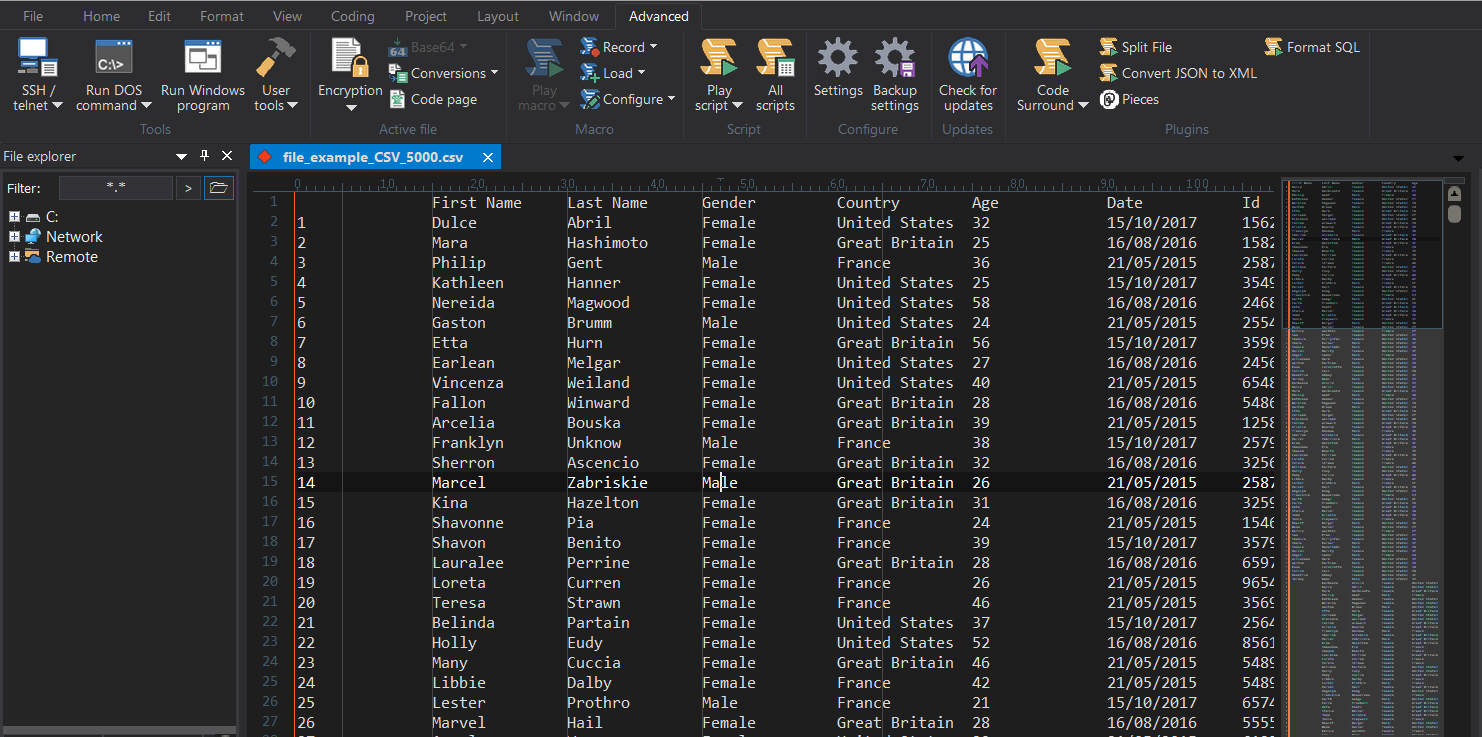
A large CSV file with fixed-width columns in UltraEdit, prepared for editing
- You remove extra rows, fix encoding issues, and standardize date formats
- You trim blank spaces, deduplicate user IDs, and check for missing fields – you can use UltraEdit advanced sort / options.
Explore more in UltraEdit text editor wiki and power tips.
4. Save and Move to Pipeline
Once cleaned and properly formatted, you save the file and feed it directly into your Python-based ML pipeline. The dataset is now ready for preprocessing and training.
This approach saves hours of frustration and eliminates risks like broken schemas or corrupted exports—especially when working with AI-ready datasets at scale.
Pro Tip: If you regularly export large datasets for AI training, a tool like UltraEdit can be a game-changer in your data prep workflow.
Tips for Managing Exported Datasets
Exporting large datasets is only part of the process. To keep them reliable, manageable, and ready for AI or analytics workflows, follow these best practices:
- Keep raw and cleaned copies – Always maintain an untouched version of the dataset alongside the processed one. This ensures you can retrace steps or fix mistakes without re-exporting.
- Document structure and schema – Clear documentation of column headers, formats, and relationships prevents confusion when datasets are shared or reused.
- Use proper column alignment tools – Misaligned columns are a common cause of broken pipelines. Tools like UltraEdit’s column mode make alignment fast and accurate.
- Use FTP/SFTP for remote files – When working with massive datasets stored on servers, secure transfer methods are essential. UltraEdit’s built-in FTP/SFTP support allows you to open and edit remote files directly, eliminating extra steps.
By applying these practices, you’ll ensure your exports are consistent, secure, and AI-ready datasets every time.
Conclusion
Exporting large datasets for AI and business analytics is critical, but it comes with challenges—size limits, formatting errors, schema issues, and the need for clean preprocessing. The right tools can make the difference between a smooth workflow and hours of frustration.
UltraEdit stands out as a powerful ally in this process. With its ability to open and edit files over 500GB, advanced column editing, and secure remote access, it’s built for professionals handling data at scale.
If you regularly work with massive exports, don’t rely on tools that crash under pressure. Instead, try UltraEdit and see how it transforms your workflow.
Download UltraEdit today and start managing your exports with confidence.
FAQs
How to handle large datasets for machine learning?
Handling large datasets for machine learning requires the right combination of tools, preprocessing, and storage strategies. Start by exporting and cleaning your data to remove duplicates, fix formatting issues, and ensure consistent structures. Use efficient file formats like CSV, JSON, or Parquet, depending on your workflow. For editing and reviewing massive files, tools like UltraEdit’s large file editor let you open and modify datasets up to hundreds of gigabytes without crashing. Finally, use batch processing or cloud-based ML pipelines to train your models efficiently on well-structured, AI-ready data.
Does AI require large datasets to learn?
Yes — AI models need large, diverse datasets to recognize patterns and make accurate predictions. Small datasets can lead to overfitting, whereas larger ones enable models to generalize more effectively. Still, quality matters as much as quantity, so ensure your data is clean and well-structured before training.
What is the best tool for large datasets?
The best tool for large datasets depends on your task, but for editing and managing massive files efficiently, UltraEdit stands out. It can open and edit datasets over 500GB without lag or crashes, making it ideal for CSV, JSON, or SQL files. Its column mode, syntax highlighting, and FTP/SFTP support make handling, cleaning, and preparing large datasets for AI or analytics workflows fast and reliable.
References
https://www.oracle.com/apac/artificial-intelligence/ai-model-training/
https://www.oracle.com/apac/artificial-intelligence/what-is-ai/
https://aws.amazon.com/what-is/deep-learning/





0 Comments