








Introduction
In machine learning (ML), the phrase “garbage in, garbage out” is more than just a saying—it’s a hard truth. If your dataset is messy, inconsistent, or full of errors, even the most advanced algorithms will struggle to deliver meaningful results. That’s where data cleaning comes in.
Data cleaning is the process of preparing raw data by removing errors, inconsistencies, and irrelevant information. It’s a critical step in the data preprocessing pipeline that ensures your data is accurate, consistent, and ready for analysis or model training.
Clean data leads to more accurate models, better predictions, and improved performance across the board. Yet, the cleaning process can be tedious—especially when working with large CSVs, JSON files, or log data.
That’s where tools like UltraEdit shine. While many rely on spreadsheets or code-heavy scripts, UltraEdit offers a fast, flexible, and visual way to clean up data—perfect for handling structured text formats with speed and precision. Among the many data cleaning tools available, UltraEdit stands out for its speed, visual clarity, and ease of handling large files.

A large CSV file opened and cleaned in UltraEdit
Key Insights
- Clean data is critical for accurate machine learning models. Messy or inconsistent data can derail performance, which is why you must clean up data before training any model.
- UltraEdit is a powerful alternative to bulky data cleaning tools. It offers a lightweight, visual-first approach to handle structured formats like CSV, JSON, and logs—without needing code.
- You can clean up data using regex, column mode, and encoding tools. UltraEdit makes it easy to remove errors, normalize values, and fix formatting issues using intuitive, built-in features.
- It’s ideal for large files and exploratory data preprocessing. With support for files over 10 GB and real-time pattern spotting, UltraEdit simplifies early-stage data wrangling.
- UltraEdit pairs perfectly with Python and pandas. Start by visually cleaning your raw text data, then move to automated processing for deeper transformations—giving you the best of both worlds.
Why Use a Text Editor for Cleaning ML Data?
When you’re working with raw datasets for machine learning—especially in formats like CSV, JSON, or logs—you don’t always need a heavyweight data platform to get the job done. Sometimes, a powerful text editor like UltraEdit is all you need.
Here’s why:
● Visual pattern spotting
UltraEdit’s clean, color-coded interface helps you spot anomalies faster. You can instantly see:
- Misaligned columns
- Irregular entries
- Duplicates or encoding issues
This visual-first approach is perfect for early-stage data wrangling.
● Quick loading of large files
Unlike spreadsheet software that often crashes or lags with large datasets, UltraEdit is built to handle files up to 10+ GB with ease. Whether you’re importing logs or CSV exports, it loads quickly—making it ideal for fast data inspection and cleaning.
● Regex find/replace
Cleaning up repetitive errors or formatting issues? UltraEdit’s regular expression (regex) support makes it easy to:
- Replace inconsistent delimiters
- Remove or transform patterns (e.g., timestamps, “N/A” entries)
- Strip unwanted HTML or code fragments
It’s a huge time-saver, especially for structured text.
● Lightweight and fast compared to spreadsheet tools
Text editors are lighter, faster, and more stable than GUI-heavy spreadsheet tools or Python notebooks—especially during exploratory data cleanup. You don’t need to load libraries or wait for scripts to run. Just open, edit, and go.
Best Data Formats to Clean in a Text Editor
Not all data formats are well-suited for visual cleanup. But when it comes to structured, line-based formats, a text editor like UltraEdit is a perfect match. Here are some of the best formats you can clean with ease:
● CSV / TSV
Comma-separated (CSV) and tab-separated (TSV) files are commonly used for storing tabular data. UltraEdit’s column mode and multi-caret editing make it easy to:
- Align misformatted columns
- Remove empty rows
- Replace “N/A” with blanks
- Normalize inconsistent delimiters (e.g., tabs → commas)
Example: Replace all instances of “N/A” with empty strings using regex, or remove trailing delimiters at the end of rows.

Replacing all instances of “N/A” with empty strings using regex in UltraEdit

After replacing all instances of “N/A” with empty strings using regex in UltraEdit
● JSON, JSONL
JSON and JSONL (JSON Lines) are widely used for storing structured, hierarchical data. UltraEdit lets you:
- Quickly fix broken syntax (like missing commas or brackets)
- Use regex to remove unwanted keys or values
- Format and re-indent for easier viewing
Example: Use regex to strip out all “debug”: true entries from an exported API response before analysis.
● Log files / API dumps
These formats often contain massive volumes of semi-structured text. With UltraEdit, you can:
- Filter only the lines that matter (e.g., ERROR, WARNING)
- Remove irrelevant headers or footers
- Clean up corrupted timestamps or misencoded characters
Example: Extract all error messages from a server log using regex: ^.*ERROR.*$.
● Scraped HTML / XML
Scraped data from the web usually comes in messy formats. UltraEdit helps you:
- Remove HTML tags
- Strip <script> or <style> sections
- Normalize whitespace and indentation
Example: Use find/replace to remove all <script> blocks before running the data through an NLP model.
These formats benefit the most from UltraEdit’s performance, pattern recognition, and regex power—saving time and simplifying your ML pipeline.
Deep Dive: Cleaning a CSV Dataset with UltraEdit
Let’s walk through a real-world use case—preparing a scraped dataset in CSV format that contains inconsistent delimiters, missing values, and duplicate rows.
Traditional tools like Excel can choke on large files, and writing a full Python script can be overkill for simple cleanup tasks. UltraEdit provides a fast and intuitive solution.
Here’s how you can clean up data for machine learning in just a few steps:
Use Case:
You’ve scraped data from multiple websites and exported it as a CSV file. However, the file contains:
- Missing values marked as “N/A”
- A mix of commas and semicolons as delimiters
- Empty columns
- Duplicate rows
Let’s fix it.
Step 1: Open the Large CSV File in UltraEdit
UltraEdit is optimized for performance—even with multi-GB files. Simply drag and drop the file or use File → Open.
You’ll see the rows load instantly, regardless of size.
Let’s use a simple sample CSV file to clearly demonstrate how data cleaning is done in UltraEdit.
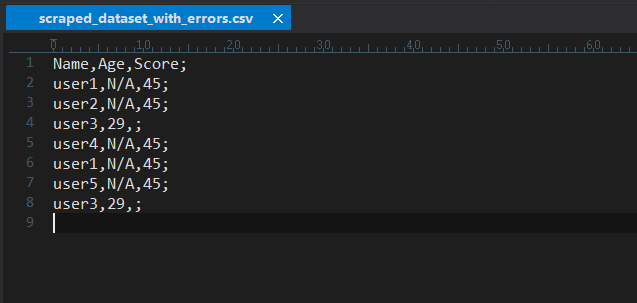
A CSV file with sample scraped data opened in the UltraEdit text editor
Step 2: Use Column Mode to Select and Delete Empty Values
Press Alt + C (or toggle Column Mode from the menu).
Now, select any vertical block of empty cells or placeholders and delete them all at once.
This is especially useful when cleaning poorly scraped columns with no values.
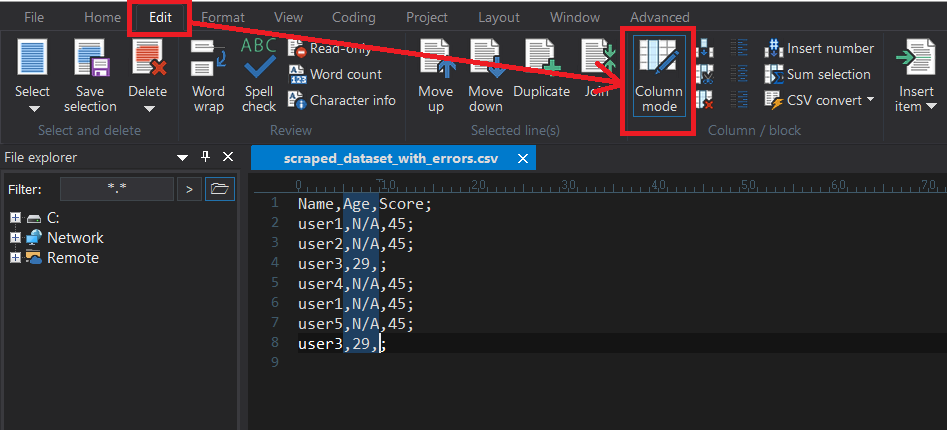
Using Column Mode in the UltraEdit text editor to select and delete empty values
Step 3: Use Regex to Normalize Formatting
Go to Home→ Replace → Replace tabEnable → Regex (Regular expressions) and run (click ‘Replace all’) the following:
- To remove “N/A” entries:
Find: "N/A"
Replace: (leave empty)

Use Regex to normalize formatting
- To convert semicolons to commas:
Find: ;
Replace: ,
This brings consistency to your CSV file and ensures your ML model won’t choke on odd characters.
Step 4: Remove Duplicate Rows
Use Edit → Sort → Advanced sort/options… → Remove Duplicates.
UltraEdit will scan your file line by line and remove identical rows—no scripting needed.
Tip: You can also sort by column values before de-duplication for better control.

Remove duplicate rows
Step 5: Save Clean Data for ML Processing
Once your cleanup is complete, go to File → Save As, and rename the file (e.g., dataset_clean.csv).
Your data is now ready to be imported into pandas, scikit-learn, or any ML pipeline.
Before and After Example:
| Raw Entry | Cleaned Entry |
|---|---|
| user1,N/A,45; | user1,,45, |
| user2,N/A,45; | user2,,45, |
This hands-on cleanup process shows how UltraEdit makes CSV data cleaning fast, flexible, and frustration-free—a must-have step before model training.
Advanced Cleanup with UltraEdit
Beyond basic edits, UltraEdit offers advanced tools that take data cleaning to the next level. These features are especially useful when working with complex, messy, or multi-source datasets that require normalization before being fed into a machine learning pipeline.
Here’s how you can leverage UltraEdit’s full power:
● Regex Examples for Data Normalization
UltraEdit’s powerful regex engine allows you to clean inconsistent formats in seconds. Examples include:
- Normalize decimal separators (European to standard):
Find: (\d+),(\d+)
Replace: \1.\2
- Remove whitespace around delimiters:
Find: \s*,\s*
Replace: ,
- Trim trailing spaces:
Find: \s+$
Replace: (leave empty)
This ensures your data has a uniform structure before being parsed by ML tools.
● Batch Find/Replace Across Multiple Files
Need to clean up multiple datasets or log files?
Use Find in Files (Ctrl + Shift + F) to apply regex replacements across an entire folder.
Ideal for:
- Standardizing column headers
- Removing sensitive fields
- Fixing formatting in bulk
● Fix Encoding (UTF-8, ISO-8859-1 Issues)
Corrupt characters or misread symbols can break your pipeline.
UltraEdit makes it easy to:
- Detect encoding issues
- Convert files between encodings (e.g., ISO-8859-1 → UTF-8)
- Save consistently encoded files for smooth imports
Tip: Always verify encoding before loading data into pandas or TensorFlow.
● Convert Delimiters (Tabs to Commas, etc.)
Sometimes datasets use tabs (\t) or pipes (|) instead of commas.
UltraEdit allows easy delimiter conversion:
- Open Find & Replace
- Replace all \t with ,
- Save the cleaned CSV
This is useful when consolidating datasets from different sources..
● Split Large Files into Training/Testing Sets
If you’re working with a massive dataset and need to divide it into smaller chunks—for example, separating training and testing sets—UltraEdit has you covered.
Thanks to its scripting capabilities, you can easily split large text files based on line numbers using a prebuilt script contributed by the UltraEdit user community. This is especially useful for preparing structured data for machine learning workflows.
Learn how to do it with UltraEdit’s official guide:
Split Large Files with UltraEdit (Tutorial)
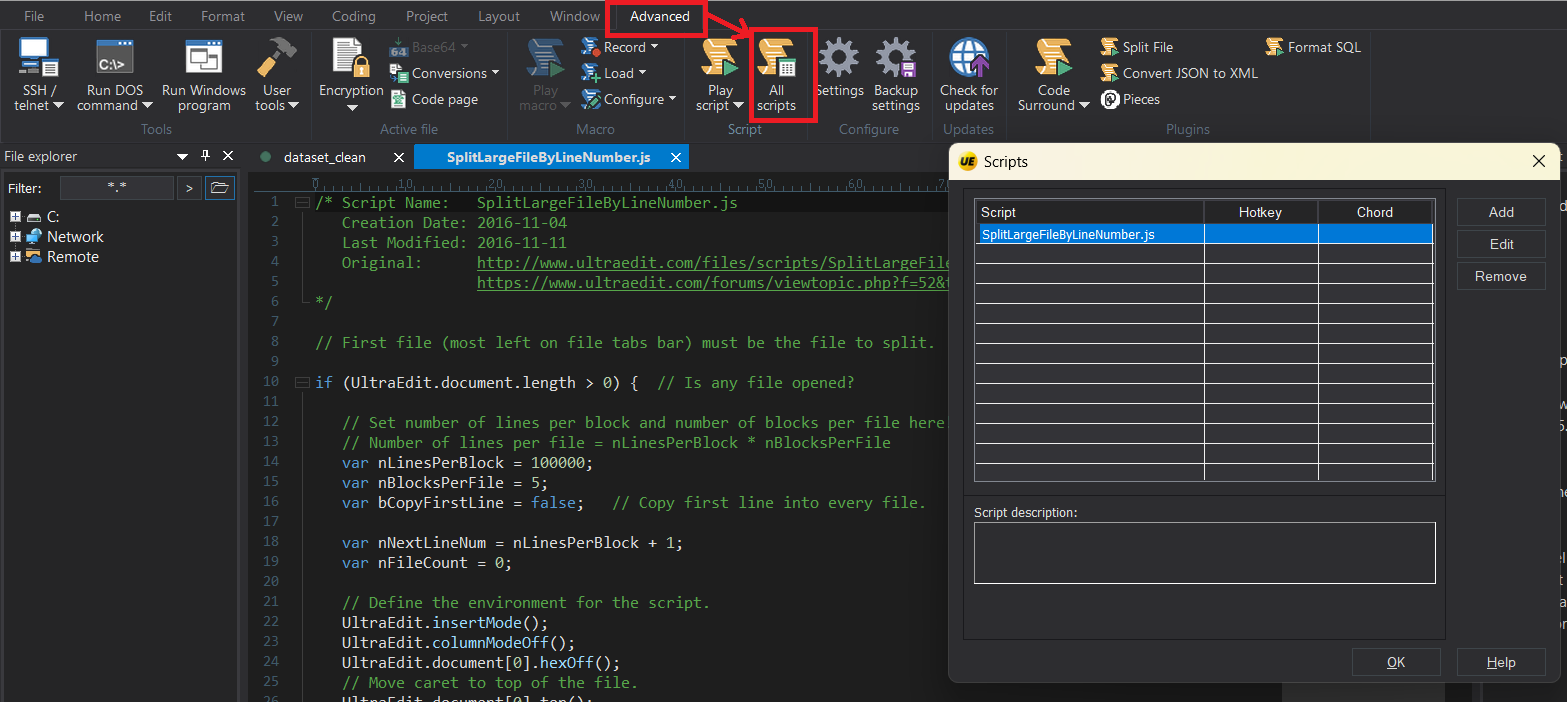
Splitting large files in UltraEdit
With this flexible scripting option, UltraEdit becomes more than just a text editor—it’s a powerful data wrangling tool that fits seamlessly into your AI pipeline..
6. When to Switch from UltraEdit to Python/Pandas
While UltraEdit is excellent for initial data cleanup—especially with text-based formats—there comes a point when scripting tools like Python and pandas become more efficient. The key is knowing when to make that switch.
Here’s how to decide:
Use UltraEdit for:
- Exploratory cleaning – visually scan and clean raw files
- Quick fixes – like regex replacements or delimiter conversion
- Manual adjustments – deleting outliers or empty lines
- Encoding issues – detect and fix malformed characters
- Prepping before import – removing corrupt rows or headers
Ideal for CSVs, logs, JSON, and scraped HTML where the structure is clear.
Switch to Python/Pandas for:
- Automated transformations – applying functions across large datasets
- Data type conversions – changing formats (e.g., date strings to datetime objects)
- Merging datasets – joining multiple CSVs or JSON files programmatically
- Data analysis – filtering, grouping, aggregating, and modeling
- Validation at scale – checking for nulls, outliers, and schema mismatches
Ideal once your data is clean and ready for deeper preprocessing or modeling.
Combine Both: UltraEdit + Python
Many teams use UltraEdit + Python as a hybrid pipeline:
- Clean raw text in UltraEdit (quick visual cleanup)
- Load into pandas for structured transformation
- Export clean output to feed into your ML models
This approach saves time, avoids early code errors, and simplifies data wrangling.
UltraEdit is a smart first step. It gives you control, speed, and confidence as you dive into more complex code-based processing.
Conclusion
Data cleaning is one of the most essential steps in any machine learning pipeline. Without clean, well-structured input, even the most sophisticated algorithms struggle to perform effectively.
Using a powerful text editor like UltraEdit gives you a head start in the data preprocessing journey. From handling massive CSV files to fixing encoding issues and applying advanced regex cleanups, UltraEdit offers the speed, flexibility, and precision you need—especially when dealing with structured or semi-structured text data.
While tools like Python and pandas are indispensable for programmatic data transformations, UltraEdit fills the gap at the very beginning—where fast, visual cleanup is crucial. Together, they create a seamless data preparation workflow for machine learning projects.
Get Started with UltraEdit
Ready to clean up data in a fast, visual way?
Download UltraEdit today and start prepping your ML datasets with precision.
FAQs
What is data cleaning?
Data cleaning is the process of identifying and correcting errors, inconsistencies, or missing values in a dataset to ensure its accuracy, completeness, and readiness for analysis or machine learning.
What is an example of cleaning data?
An example of cleaning data is removing duplicate rows from a CSV file, replacing missing values like “N/A” with blanks, and fixing inconsistent formatting—such as changing semicolons to commas as delimiters. These steps help ensure the data is structured correctly before using it for analysis or machine learning.
Can I use a text editor like UltraEdit to clean large datasets?
Yes, UltraEdit is designed to handle large datasets efficiently, even files exceeding 10 GB. It offers powerful features such as column mode, regular expression (regex) find/replace, and encoding support, making it ideal for cleaning CSVs, logs, JSON, and other structured text formats before importing them into machine learning tools.



0 Comments