








Introduction
In our previous blog, we explored the basics of UltraEdit’s sort function, such as sorting by line, by columns of text, or even by a certain selected amount of text. Learning to leverage this feature is essential, as arranging information is key to making data readable and therefore usable.
In this blog, we dive into a more specific use case of UltraEdit’s sorting functionality. We are going to share how you can sort CSV files via specific fields or columns easily.
About CSV file sorting
A comma-separated value (CSV) file is a simple and widely used format for storing tabular data separated by commas. Each line (or row) in a CSV file corresponds to a single record, and each line has one or more fields that describe the record. This simplicity and flexibility make CSV files a popular choice for data exchange between different applications, especially when dealing with large datasets.
Sorting .csv files using entails arranging lines according to a parameter that a user sets. This is essential if you want to make use of data, whether for manual viewing or for processing using another application.
For example, you may have a security logbook of a store. This will have a field that has a timestamp, a date, a name, and the ID reference number for all employees clocking in and out. Hard drive space is limited, so it saves it via text data only which is why csv was the format of choice.
In order to properly use or read this data, you must be able to choose a field to sort the records by a certain parameter—whether it’s by date, by employee, by ID numbers, etc.
Limitations and challenges of sorting CSV files
CSV files have limitations, however. It has no support for complex data types such as images, binary data, or lists. In the example above, each field will be populated with just text data. This may make it a bit more difficult to change the format of the date field from mm/dd/yy to dd/mm/yy, for example. Likewise, this may also make sorting more complicated as well.
Furthermore, it can suffer from scalability issues. CSV files are suitable for small to medium-sized datasets, but they can become unwieldy and inefficient when dealing with very large datasets. Operations such as searching, sorting, and filtering can be slow and resource-intensive, as CSV files do not support indexing or other database-like optimizations.
Why Use UltraEdit for sorting .csv data
In that case, using the right tool is important in sorting your datasets. But what is the right tool? Why not just convert the .csv file into another database-like readable format, import it to Microsoft Excel or Google Sheets, and run a sort function on the specific column?
And you’re right. That’s certainly something you can do. Using applications you are already familiar with certainly speeds up your work. For instance, you can use your regular spreadsheet editor to sort this—but only to an extent.
For the cases wherein it is not sufficient for the task, you can use UltraEdit. It isn’t meant to wholly replace those programs but it’s there to act as a backup when those no longer work. Here are a few examples:
- Working with files exceeding the 1,048,576-row limit of Excel
- Handling files such as SQL databases that are difficult to import/export
- Sorts not using the first character of a column/field
- A combination of the above
In these cases, a nifty tool like UltraEdit may be easier to work with, especially with large csv files.
UltraEdit Sort Basics
The Sort button is located in the Edit tab. And you can also use the Command Palette (Ctrl + Shift + P) to type and search for the feature.
The basic sort function arranges the whole file or your current selection based on the first character on each line. This is particularly useful if you have a singular column of data that you need sorted.

Advanced/Sorting Options for .csv files
For .csv files however, there will be more than one field that you can sort. And the starting character and the delimited values may vary in length and position. In this case you would need something similar to UltraEdit’s Advanced Sorting option.

A CSV file showing a list of films and eight information fields. Sorting .csv files is a bit more complicated than regular unarranged data because you may want to specify which field you want sorted other than the first field.
Sorting by a chosen field is easy to do in UltraEdit. Simply navigate to the Edit tab and look for the Sort function and expand the options by clicking on Advanced/Sort Option in the dropdown. This will show you a couple of more advanced functionality for sorting.
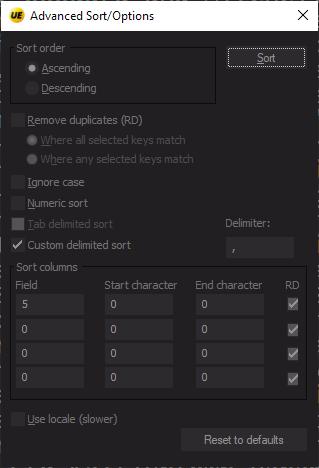
UltraEdit’s advanced sort options.
In this menu, you can set parameters for sorting such as sort order, case matching, string/numerical sorting, and more importantly, you can specify the key field for sorting. (You can also set start and end characters in that field to consider for sorting.)
Pick whatever sort options you need first. Afterwards, be sure to enable custom delimited sorting and set it to whatever is segmenting your fields.
In this case it’s a .csv file so it’s a comma (,) but you can also use semicolons, slashes, or even tabs (use tab delimited sort instead).
Afterwards, you need to configure your sort keys, which tells UE what and how to sort the opened file. The first sort key is shown in the first row under the Sort Columns table.
- Field: Sets which field/column to be used as the sort key.
- Start and End Character: Specifies which character/s of the field is used as the sort key.
- Secondary fields onwards: Assigns the next sort key in cases where there are duplicate entries. These are the second to fourth rows in the Sort Columns table.
After you’ve set your sort keys, you can run Sort and it should give you a sorted version of the .csv file based on the field you’ve selected. We set our sort to arrange Field 5 so it sorted via the “Profitability” field. Remember to tick the Numeric sort in the options menu since we’re working with a field that’s dealing with numbers.
Note that since it’s a flat .csv file, it will also include the first line, which is usually the field titles. If you want to exclude the title row from the sort, select the second row up to the last row of the file before you run the sort.

So to summarize, here is how you sort a csv file by a certain field:
- Navigate to UltraEdit’s Sort. (Edit tab or search via Command palette)
- Open Advanced Sort Options
- Enable “custom delimited sort” and set to “,”
- Set your fields and parameters for sort keys.
- Run the sort.
Watch the live demo here:
Bonus Tip: Making your CSV files readable
As you can see in the screenshot above, the sorted .csv file may be a bit hard to read because each record is shown continuously in one line. Fortunately, UE also has a feature to format .csv files for viewing. The auto CSV Convert feature automatically adds spaces before and after the delimiters to make it easier to read.

CSV convert makes your csv files more readable by automatically adding spaces to align your fields.
To access the feature, check under the same Edit tab, click on CSV Convert → Convert to Fixed Width. Tick the options you want then run Scan and finally, Convert.

The CSV convert files feature automatically adds spaces so you can read csv data properly. Watch a demo here.
Conclusion
Sorting data is an often underestimated task that may bring unexpected difficulties based on what you need and what tool you’re using. Whatever the case, it’s important to always have a backup in terms of managing and editing your files.
In this blog, we showed how you can fully utilize the available features in UltraEdit to address most of the issues you may encounter when trying to manipulate data in a .csv format. Continue to learn more about UltraEdit and discover new use cases to increase your productivity.





0 Comments